Voice Match lets every member of the family set up Google Home's personal results.
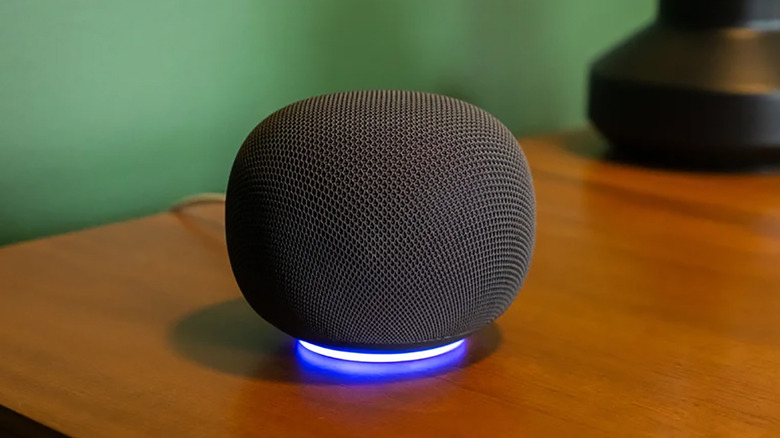
Google announced in August 2025 that Google Home speakers and other compatible devices would be getting a Gemini-driven refresh. This includes a more conversational and contextual experience with the ability to understand natural phrasing. It also includes improvements to Voice Match and personal results. When you ask "What's on my calendar?" it knows who you are and will curate the responses accordingly.
To set up personal results, open the Google Home app connected to your Google Home speaker and set up Voice Match (select your profile photo, Home settings > Gemini for home assistant > Voice Match). Then select Home > Settings. Under Features, select Google Assistant > Personal results. Select the devices you want this to work with. And that's it!
With compatible Google Assistant — now Google Gemini — devices, the smart speaker can tap into your personal calendars, appointments, Google Keep, Notes, Lists, Photos and other pertinent details. You can also share access. This means everyone in the home can sync their own unique profiles.
The benefits of personal results
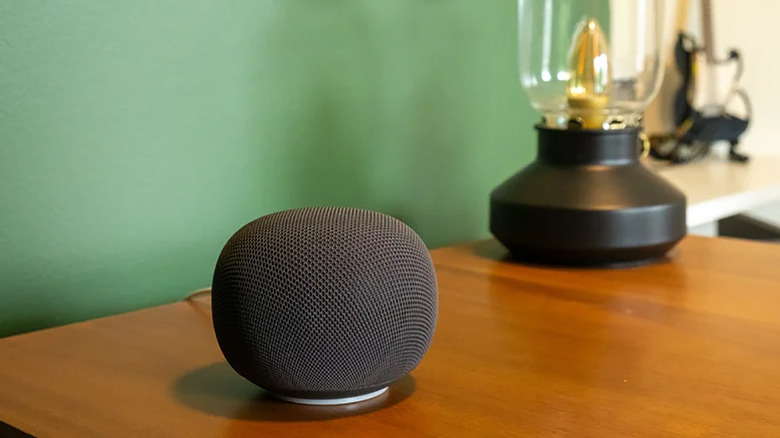
With Voice Match on and personal results set up, the speaker will listen for your voice and provide responses relating to you, while these will be blocked from anyone else. Others, like guests or other family members who have not set up their profiles, can still ask questions, set alarms, and more. But they will get generic responses versus personalized ones. You, however, will be able to ask what's on your calendar, ask what items are left on your to-do list, request for your Google Home to play your favorite music playlist and more. If you find the smart speaker keeps misunderstanding you, look into some quick fixes, like moving it to a quieter room or redoing the Voice Match training.
It's worth noting that if you were to turn off Voice Match with personal results turned on, anyone speaking to the smart assistant will hear your personal results. This might not matter if the Google Home speaker is in your home office, on your nightstand or another location where you're the only one using it. But for a household with multiple people and a Google Home speaker in a central location, you need to follow additional steps so it knows who it's speaking to.
Personal results for everyone
To get personal results to work for everyone in the family, everyone needs to go through setting up Voice Match. It works for up to six people, and each person needs to link their Google account to the device individually and turn on Voice Match using the steps noted above. From here, the Google Home will be able to determine who is speaking and provide personalized responses to their queries by recognizing and distinguishing among voices.
Personal results combined with Voice Match allows everyone to walk by, ask a question, and get a response that's unique to them. A teen might be reminded that he has a math test today, while Mom can call up her notes with a reminder to pick up a case of water for the soccer game tonight. Dad might ask for the score for his favorite team while Grandma wants to play her favorite music playlist while making dinner. It's a useful feature to use whether you're personalizing results for you and you alone or for everyone to have their own personal assistant.