If you have an old iPod lying around, here’s how you can turn it into a cool flash drive.
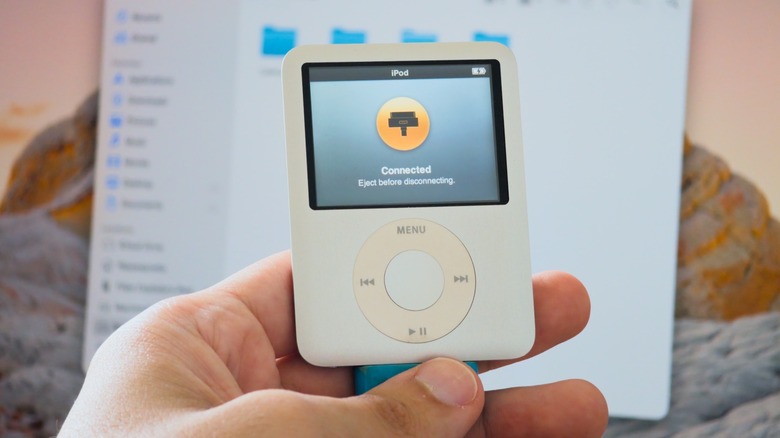
Apple discontinued the iPod lineup years ago, but there are still many people who have one or more lying around — whether because they appreciate the nostalgia of using an MP3 player in the age of streaming or simply forgot them in a drawer. But even if you don't want to use your iPods to listen to music, they can still have a second life as a cute (and somewhat hidden) way to store files and transfer them between computers, as pre-iOS iPods can function as a basic USB flash drive that works on both Mac and Windows.
Just don't rush out to buy an old iPod if you don't already have one, though. A 32GB USB flash drive usually costs around $10 and offers much more storage than most older iPods, which have less than 20GB of storage — iPod Classic aside. Plus, they're all limited to USB 2 speeds, so they aren't great for transferring large files. But if you have an iPod lying around and don't know what to do with it, this is a good way to reuse it.
How to turn your iPod into an external drive
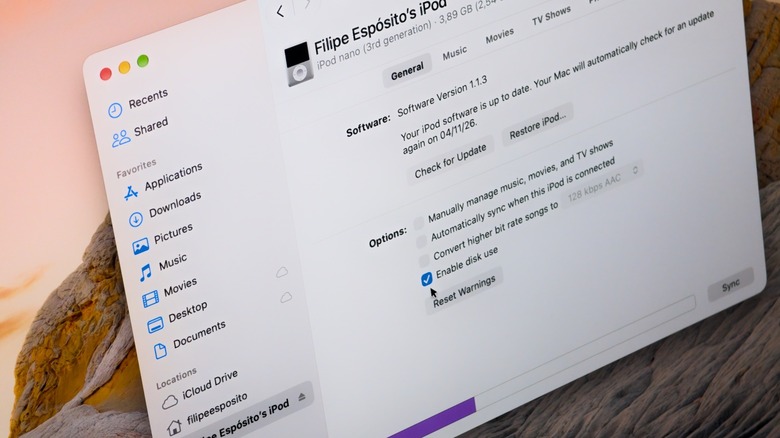
To use your iPod as a flash drive, you first need to enable Disk Use, which is off by default. On a Mac, connect your iPod and look for it in the Finder sidebar. Go to the General tab and then click Enable Disk Use in the options. Before closing the Finder window, click Apply. On Windows, you can use either iTunes or the Apple Devices app to enable this feature — the process is the same.
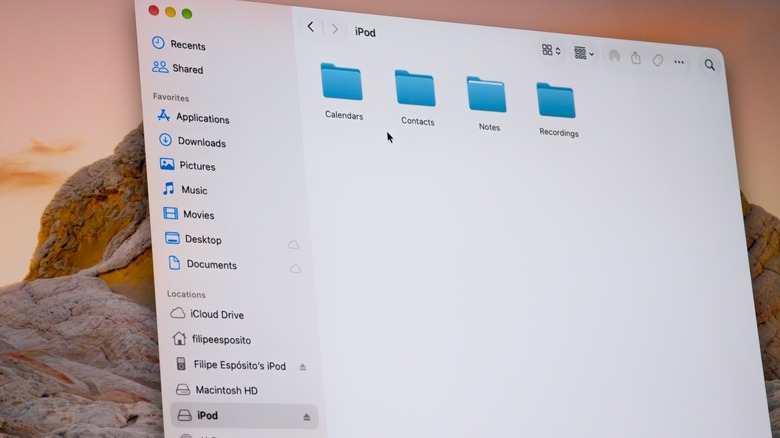
Once you enable Disk Use, your iPod will appear in the Finder or File Explorer just like any other USB flash drive or external hard drive. Drag any files you want onto it, and that's it — they'll be stored on your iPod. These files won't be visible on the iPod itself, only on a computer or other devices that can read external drives. Your files will share space with the iPod's system files and the music already on it, so you won't have the full storage capacity available to use as a flash drive.
An iPod set up on a Mac is usually formatted as HFS+, and Windows can't read that file system without third-party software. For wider compatibility, restore the iPod and set it up using a Windows PC so it uses the FAT32 file system. Macs can read FAT32 just fine, as can smart TVs and other platforms, although it is limited to 4GB per file. Do bear in mind that restoring your iPod will erase everything on it.
Disk Mode is not the same thing
Older iPods also have a feature called Disk Mode, which is not the same as Disk Use. Disk Mode is essentially a diagnostic tool and can help when an iPod freezes or doesn't show up on your computer. On click wheel models, including the iPod classic, iPod mini, iPod with video and nano up to the fifth generation, flip the Hold switch on and off. Then press and hold Menu and the center button for about six seconds until the Apple logo appears. Let go, then immediately hold the center button and Play/Pause until the Disk Mode screen appears. Laying the iPod flat and pressing Play/Pause near the outer edge of the wheel makes it easier to reach.
Neither Disk Mode nor Disk Use is available on the iPod touch, since it runs iOS instead of the iPod's older operating system. These features are only available on iPods with a Click Wheel and the 7th generation iPod nano (the one with a touch screen). Also, if you plan to use your iPod as a portable flash drive, be sure to bring a 30-pin cable with you, since you're not likely to find one in the wild these days. If reusing your old iPod as a flash drive isn't quite enough, check out the Sprout Pi Mainboard, a crowdfunded project that adds modern features like USB-C, Bluetooth, and even streaming apps to select iPod models.