Seagate FireCuda Forge: 30-second review
SpecsStorage Capacity: 8TB / 20TB HDD
Storage Technology: Seagate Alkemi dynamic tiered storage
HDD Form Factor: 3.5-inch
SSD Type: M.2 2280 NVMe (user-installed, not included)
SSD Interface: PCIe Gen 3 or newer
Maximum Sequential :Read Speed: 2,500MB/s, Write Speed: 2,000MB/s
Computer Interface: USB4 (USB-C)
Operating System Compatibility: Windows 11, macOS 26 or later
Power: External AC power adapter
Dimensions: 240.3 × 146.8 × 65.2mm
Weight: 1.919kg (20TB), 1.845kg (8TB)
Warranty: 2 years (UK and Europe)
Seagate has approached the latest iteration of its FireCuda Forge external HDD in an interesting new way for this drive format. Essentially, it combines the speed of an SSD and the storage capacity of an HDD in one device. While this has been done before, as it works as tiered or cached storage, this is usually seen in enterprise level hardware.
This works by having your main HDD, which in this case is a large 20TB drive, and then having a smaller but faster SSD. When you plug in the drive, instead of seeing the two as you would expect, you see only one.
As you copy files to the drive, the system uses the SSD to speed up transfers, while Seagate's Alkemi technology automatically prioritises frequently accessed files on the SSD and keeps less frequently accessed files on the HDD.
Getting started with the drive does require you to insert an SSD of your choice, as the main unit arrives with just the 20TB HDD installed, so you’ll need to purchase an SSD as well, which is something to consider when you look at the cost. Seagate supplied a 2TB PCIe 5.0 SSD, but the specifications show a 1TB limit. Another key factor is that the SSD should include DRAM cache.
Installing the SSD is easy enough, and once it's installed, I was able to plug the drive into the USB4 port of the GMKtec EVO-X5 Pro. Unlike the FireCuda X Vault that I looked at recently, which is bus-powered, the Forge requires its own power supply.
Initial tests showed this drive’s potential, and while the interface is USB4 and the M.2 SSD inside is the latest PCIe 5.0, the speed tests hovered around 2,000MB/s for both read and write.
This is far in excess of any HDD I have used in the past and showed that, while I could only see the single drive, the SSD was doing its job and enabling these much faster transfer rates.
As the test progressed, I started to see exactly what this drive was about, how it would fit into workflows and its limitations. The SSD enables fast transfers to and from the HDD. However, this is tiered storage with the clever Seagate Alkemi technology managing the data, so frequently accessed files are prioritised on the SSD, while less frequently accessed files are stored on the HDD. This meant that for a 4TB Premiere Pro project, opening up the initial project was admittedly fast, and then editing the file proved to be a fluid process. When I switched to the same edit on an older 5TB HDD I often use for editing, the editing was still smooth, but there were also slowdowns, especially during timeline rendering.
By the end of the test, the most notable advantage of the Forge was its backup speed compared with a standard HDD. Files could be transferred at near 2,000MB/s compared to the usual 200MB/s. Even as a working drive, it performed faster, and the workflow felt more fluid than I expected for a drive that uses an HDD for most of its capacity.
Seagate FireCuda Forge: Price & availability
The FireCuda pricing has yet to be officially announced but is expected to be around the £900 mark for the 20TB and then an addition £100 for the 1TB SSD.
- Score: N/A
Seagate FireCuda Forge: Design & build
The design and build of the FireCuda Forge reflects what I saw with the FireCuda X Vault earlier in the year. There are differences, but essentially, there’s no mistaking the similarities of this external hard drive family.
The overall look and design are solid, and the build quality and materials are exceptionally high. It’s not metal, but the plastics are well finished, and it felt solid enough as I unpacked it and set it on the worktop.
One of the first points that I noted about the drive is that it requires its own power source, and a power brick is included in the box along with a USB4 cable. Before plugging everything in, the drive needs an SSD installed, and the instructions state it has a 1TB limit. However, Seagate also included a 2TB FireCuda PCIe 5.0 module which seemed to work fine.
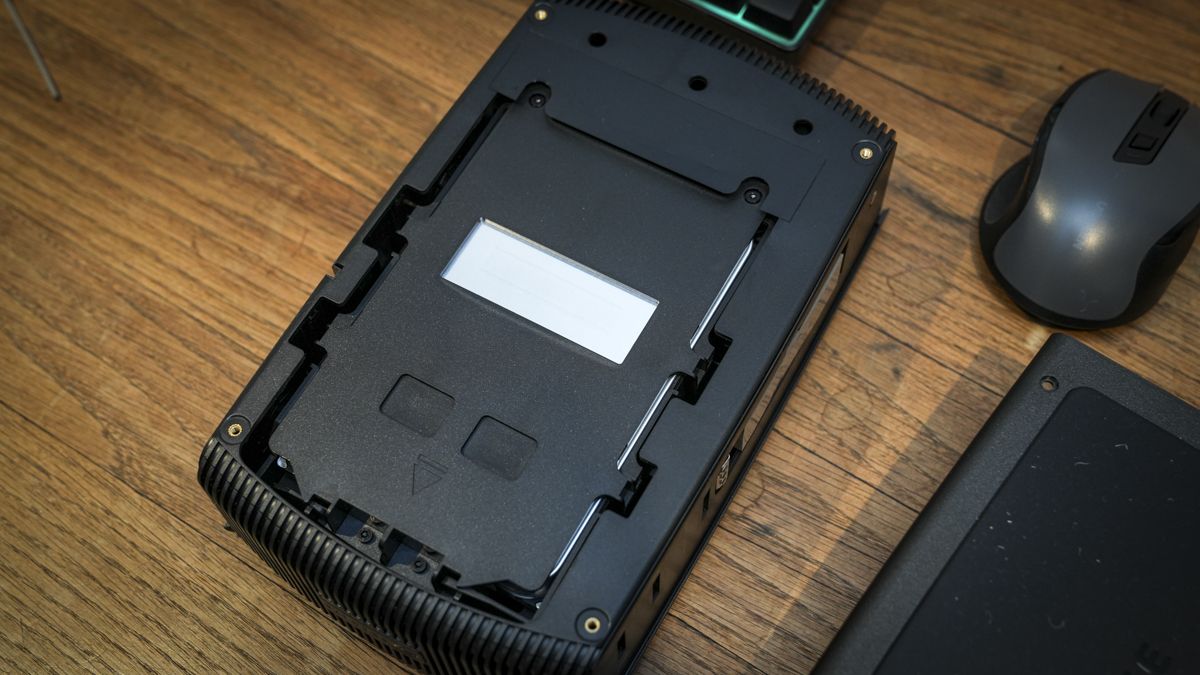
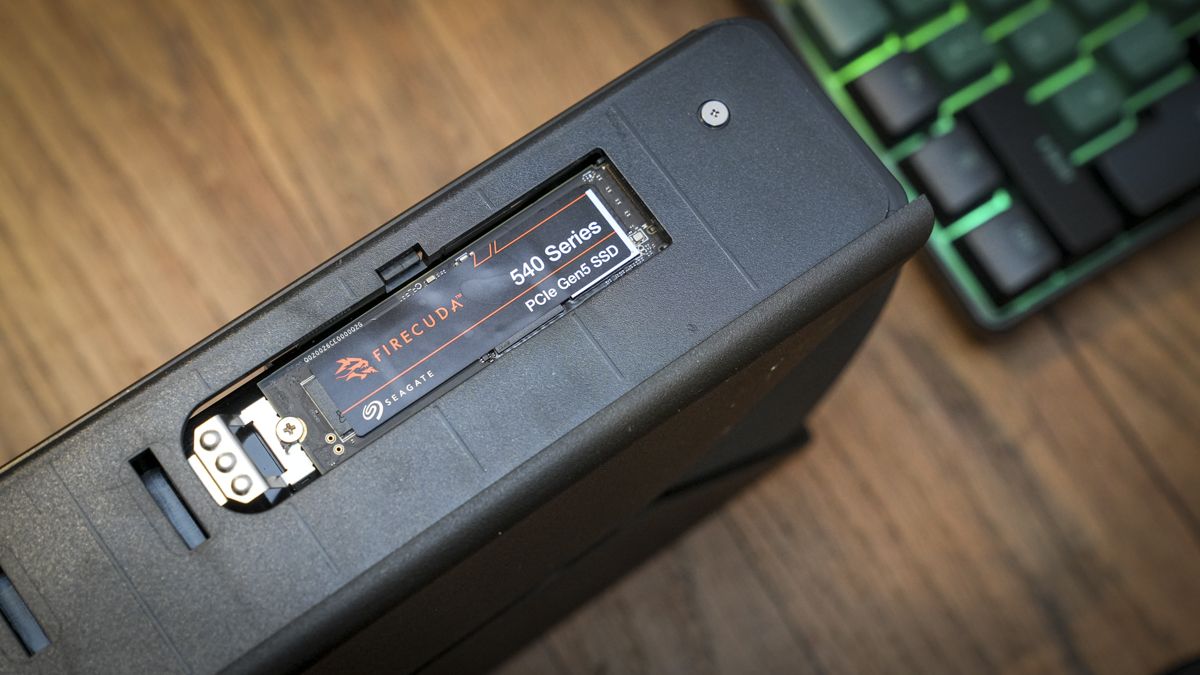
This is installed into the side of the unit, with four hex screws on the base holding the cover in place. Once you pull it free, you can access the SSD slot on the side of the machine. While Seagate includes a hex key in the box, you'll need to provide a cross-head screwdriver to install the SSD.
After installation, the drive can be plugged in and is ready to go, with the internal HDD being pre-formatted to the NTFS file system. According to the instructions, you can reformat the drive for macOS if needed, but either way, once connected, it’s ready to go. The drive officially supports Windows 11 and macOS 26 or later. Since it arrives formatted to NTFS, you'll need to reformat it to a Mac-compatible file system if you want normal read-and-write access on macOS.
In this test, I connected the drive to the GMKtec EVO-X5 Pro and then transferred data from an existing video project from a 5TB LaCie Tough Pro drive with an HDD inside and a 4TB LaCie Rugged SSD Pro5. I connected both to the other USB4 port on the mini PC, but not at the same time.
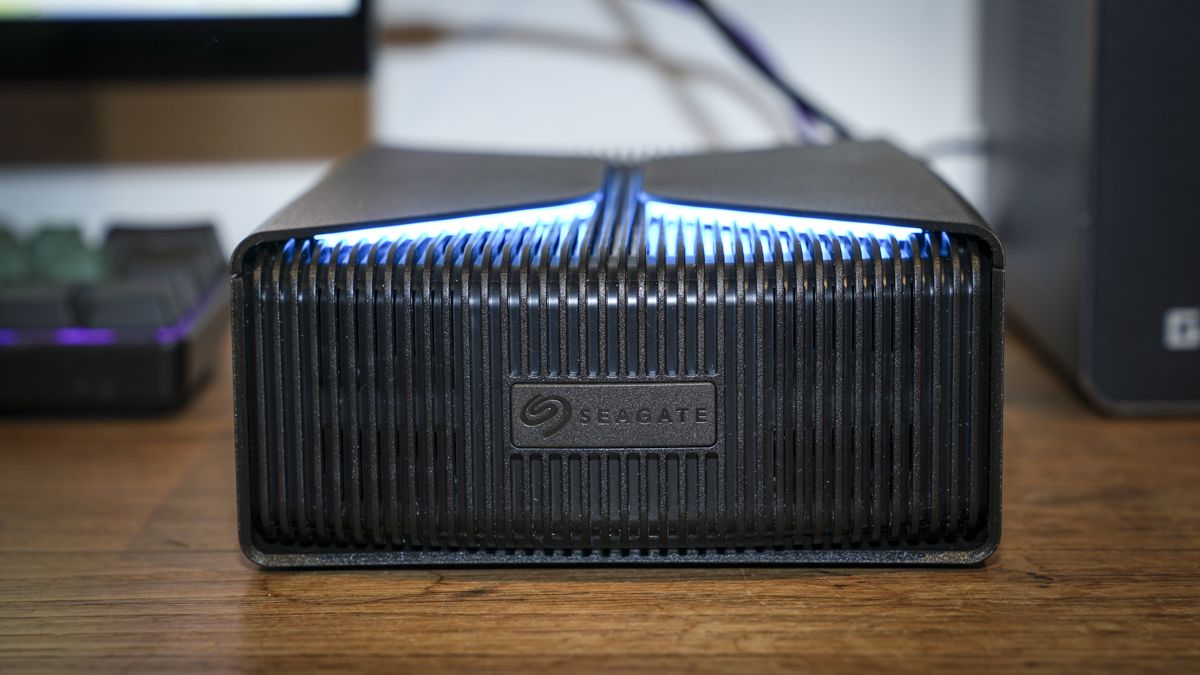
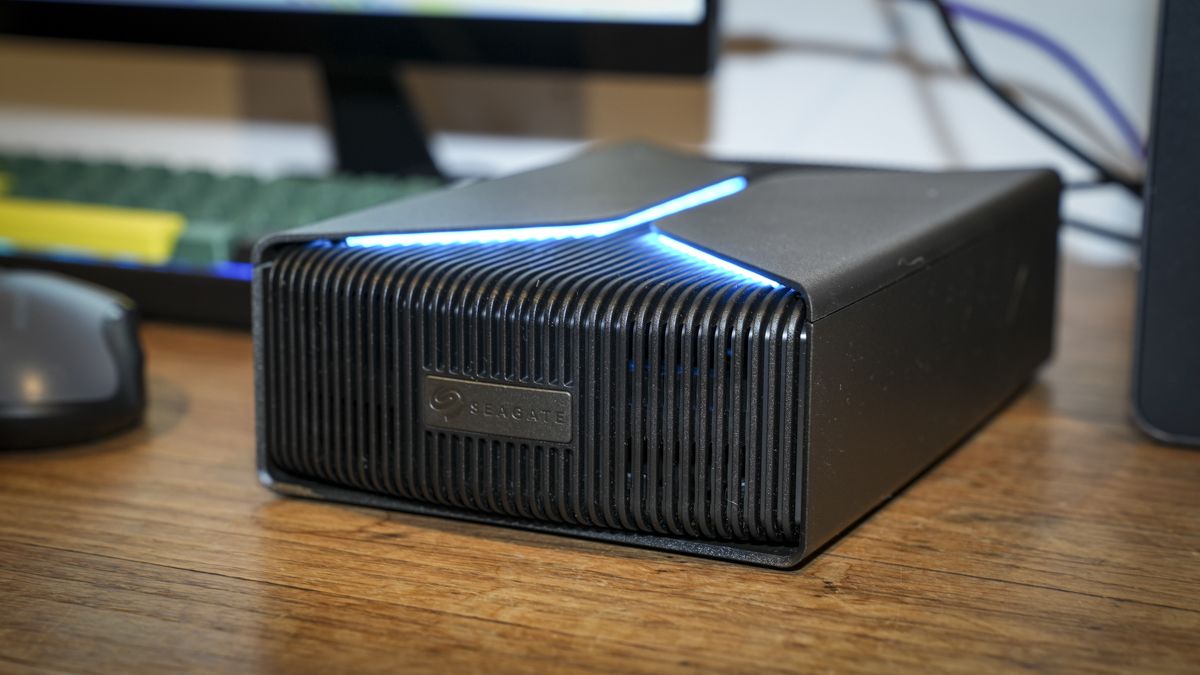
Aesthetically, the exterior casing is beautifully designed and features an LED light at the top. It also acts as a status light, showing the drive's basic activity, which is extremely useful.
Connections to the drive are limited, with a power socket for the AC adapter and a USB4 port for the data connection to the machine.
In terms of size, it includes a 3.5-inch drive inside that, like the SSD, is replaceable if you need more capacity or want to replace it in the future. The overall dimensions are 240.3 × 146.8 × 65.2mm, and it weighs in at 1.92kg.
- Design & build: 4.5/5
Seagate FireCuda Forge: Features
From the start, the tiered storage makes this drive far more than most, combining the best features of both SSD and HDD into one. The off-the-shelf unit arrives with a 20TB 3.5-inch HDD installed, but you can replace it later if you want. As well as this 20TB version, a smaller 8TB option is also available; aside from the capacity difference, the drive is also marginally lighter at 1.845kg.
However, while the drive arrives with a ready-to-go HDD installed, before the drive is recognised by the system, be that PC or Mac, it does need an NVMe M.2 2280 SSD to be installed, and this is not provided. The SSD you install must be PCIe Gen 3 or newer, with a maximum supported capacity of 1TB and minimum rated read and write speeds of 2,400MB/s and 2,000MB/s respectively. Seagate also recommends an SSD with DRAM cache.
The surprise here is that once the two drives, the pre-installed HDD and self-installed SSD, are fitted, you would normally expect them to appear as separate drives on the desktop or in the file manager when plugged in. However, because of the system's tiered design, those two drives combine into a single drive.
Seagate's Alkemi technology automatically manages the storage using dynamic tiering to organise data between the HDD and SSD. Essentially, those files being accessed by the user are made accessible on the SSD, speeding up the response time.
Seagate highlights maximum transfer rates of up to 2,500MB/s, but, as ever, this depends entirely on your configuration. Write speeds are also quoted at a very respectable 2,000MB/s.
Although the drive has only one data connection, it uses USB4, which proved to be compatible with Thunderbolt 3, 4, and 5.
- Features: 4.5/5
Seagate FireCuda Forge: Performance
All benchmarks run on GMKtec EVO-X5 Pro
CrystalDiskMark 8 Sequential Read: 2,248.52 MB/s
CrystalDiskMark 8 Sequential Write: 1,726.77 MB/s
ATTO Disk Benchmark Read: 2,320 MB/s
ATTO Disk Benchmark Write: 1,610 MB/s
AS SSD Benchmark Sequential Read: 1,855 MB/s
AS SSD Benchmark Sequential Write: 1,380.33 MB/s
AJA System Test Read: 1,721 MB/s
AJA System Test Write: 1,153 MB/s
Unlike most external drives, getting started with the FireCuda Forge wasn’t as simple as unboxing and plugging it in. While the drive comes with a large 20TB HDD, this cannot be accessed until an SSD has also been installed. The SSD, unlike the HDD, isn't included, so you'll also need to factor in the additional cost of a 1TB module. For a premium option, the FireCuda X1070 1TB SSD costs £179, though that is direct from Seagate, and I have found it elsewhere for much less.
Seagate officially supports SSDs up to 1TB. However, during testing, I installed the supplied 2TB FireCuda X1070 SSD and found that it worked.
Installing the SSD is relatively simple, with the four screws on the base of the machine being removed before the entire base and side cover are removed as one piece. This reveals the HDD, which you can replace later if needed. On the side of the unit is the slot for the SSD, which can be placed in and screwed into place. A small screw is provided in the box, but you’ll need to provide your own small cross-head screwdriver.
Seagate has also included two large thermal pads that stick to the back of the SSD module. Once everything is installed, the base can be reattached and screwed into place. Then attach the USB4 cable, which, at 50 cm, gives a good length between the machine and the drive. Then connect the power, and after a few seconds, the drive mounts. The initial mount took around 10 seconds, which I found to be about average throughout the test.
I started by running the benchmarks, and the initial results were exceptional for a drive of this type and showed how the SSD came into play with standard transfers.
Copying the files from the first external drive over to the HDD, it was obvious that the speed was being limited by the older drive, and any advantage that the drive should have had due to that SSD was being wasted on the slower technology being used at the other end.
However, as I switched to the small 4TB Thunderbolt 5 SSD, the speeds ramped up, and the transfer rate of the real-world files reflected some of the faster transfer speeds that were highlighted in the benchmarks.
Compared with my usual archival storage, there’s really no comparison to be had, and after a video shoot, connecting up the OWC CFexpress Type B card reader and transferring just over 1TB of data to the drive happened in around 12 minutes. Testing this with a more standard HDD, that same data took around 1 hour and 20 minutes, so a significant difference when you’re backing up the files after a shoot.
In the standard backup-and-transfer process, the drive is significantly faster than a standard HDD. However, this isn’t always the case.
The SSD is limited to 1TB, and as I increased the amount of data being copied to the drive, I noticed a slowdown. When I copied the 1.2TB of data over, the system appeared able to maintain high transfer speeds by managing the data between the SSD and HDD, despite the SSD's 1TB capacity limit. However, when I transferred 4TB from an external SSD to the drive, the first part of the transfer was at a similar speed before it started to slow. It was still significantly faster than a traditional HDD, however.
I then used the FireCuda Forge as a working drive, and the potential here really impressed me. Most of my video edits are around the five-minute mark, so are under or close to 1TB. Compared to editing from a standard fast HDD over USB4, which is possible, but where there are often some slight delays as timelines render, here it was the same as editing on a straight SSD.