Your Roku might lose a few features if you plug it into any old HDMI port on your TV.
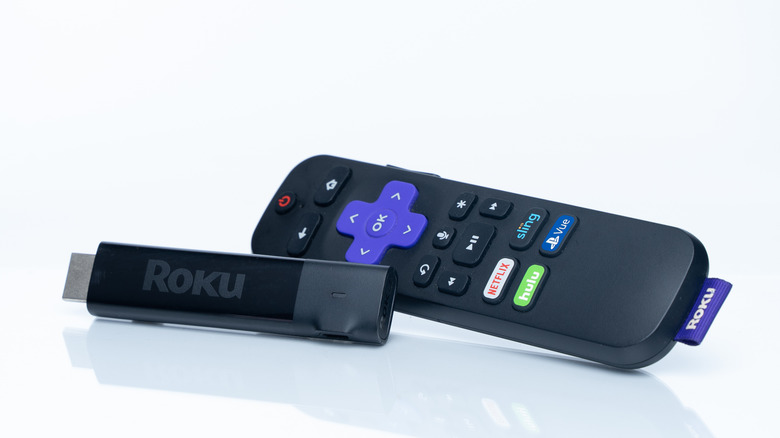
Depending on your smart TV, an add-on media streaming device isn't necessarily essential, but they can still provide a lot of value. Perhaps your TV's processor can't keep up with the latest apps and features, or you might prefer a specific ecosystem. That's what Apple is banking on to sell the 2026 Apple TV 4K, which is now an extremely pricey box at $299.
Roku streamers are far cheaper, but can still come with other concerns. You might be worried about your Roku monitoring what you watch, for example, or the implications of Fox's pending takeover. On a more mundane level, there's an issue applicable to any connected device: getting the best possible performance from your TV.
To do that, it's vital to you select the right HDMI port and cable. It's hard to go too far wrong with Roku devices, but a mistake could still mean getting inferior video or sound.
Picking the right HDMI port for your Roku
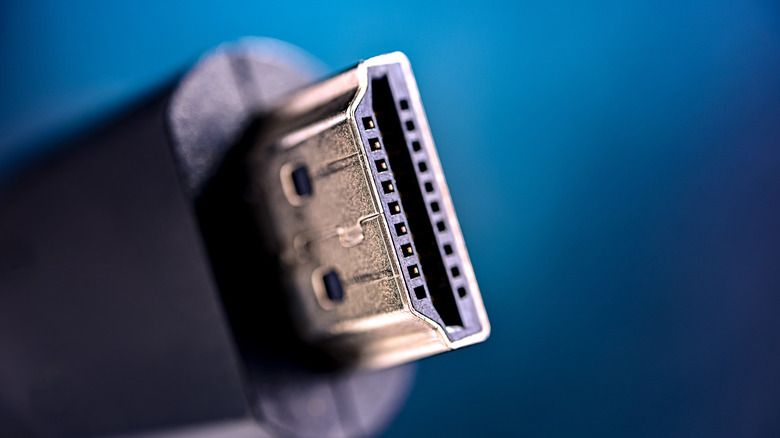
The reason it's hard to go wrong is that for the most part, Roku devices don't exploit any features unique to HDMI 2.1 or later, and all modern TVs support at least HDMI 2.0. Standards like 4K, HDR10+, Dolby Atmos and Dolby Vision can all work over 2.0, if not necessarily in their optimal form. Optimal would include 120Hz-plus refresh rates — but even Roku's top-of-the-line Ultra is capped at 60Hz, regardless of which port you plug it into.
That's acceptable, since 24fps is the most common playback speed for TV and movies while 30fps is used for news. 60fps content (equaling 60Hz) is common on YouTube, Twitch and many live TV streaming services; any modern Roku will support this. 120Hz would simply enable clearer motion, which is mostly relevant for gaming.
The Roku Ultra does support an HDMI 2.1 feature called Quick Media Switching (QMS). This allows refresh rates to shift up or down seamlessly, like if you're flipping from the 30fps evening news to the 24fps cinematic standard. Without QMS, you're going to run into temporary blackouts when a frame rate shift occurs.
In some cases, only certain HDMI ports on your TV will support HDR standards like Dolby Vision. Or if that barrier doesn't exist, you might have to go into your TV's input settings to flip a port over to the appropriate "enhanced" option. Ports are often set to reduced capabilities by default for the sake of compatibility. But since it's unlikely that you'd run into conflicts, you might as well enable modern functionality across the board. Check your manufacturer's website to figure out which ports support HDR and which menus you might need to navigate.
On sound, cables and similar
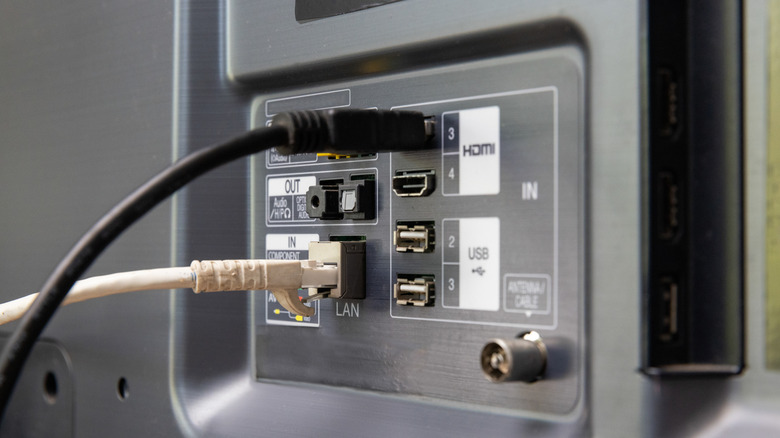
Another important point here is that you shouldn't plug a Roku into your TV's ARC or eARC port. While that technology is essential for some audio features like Dolby Atmos, labeled ports are intended for compatible output devices like soundbars, receivers and other speaker systems. If a TV supports ARC or eARC, it's automatically pulling audio from every HDMI 2.x input, regardless of how it's marked.
Along with the right ports, it's also important to choose a matching cable. If your Roku does support HDMI 2.1 features, a 2.0 cable will prevent them from working. If there's any doubt about what you have, HDMI 2.1 and even 2.2 (also known as Ultra96, which is not in wide use yet) cables are easy to find at low prices.
Computers and game consoles should always get priority for available HDMI 2.1 or 2.2 ports, since they can fully take advantage of high refresh rates and VRR (variable refresh rate). Streamers like Rokus are further back in the line, at least until manufacturers start taking advantage of everything newer TVs are capable of.