They're a quick way to help you check component compatibility before you build or upgrade a system.
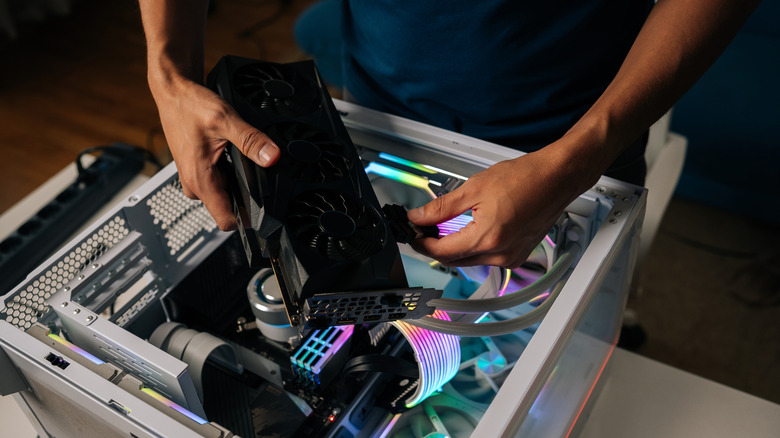
Troubleshooting computer components can be daunting. After the physical labor of installing a new part, you'll want to stress-test it to make sure your replacement works properly. Finding a faulty part is relatively straightforward, but what if the component is limiting the rest of your system? During a stress test, you might see your CPU at 100 percent while your GPU is practically idling.
This is considered a bottleneck. When one component holds back the rest of the system, it hinders performance until you resolve the bottleneck. For example, if your CPU is at 100 percent while your GPU is barely drawing power, we'd classify that as a CPU bottleneck since it's impairing your GPU's performance. Knowing which component is bottlenecking your system helps you decide what to upgrade or troubleshoot next. Before you buy a new GPU or any expensive component, check for bottlenecks first.
Some websites and software offer bottleneck calculators to help you troubleshoot these issues without stress-testing your system. While they can help you quickly spot a hardware mismatch, they're rarely accurate. Many online calculators can't tell the full story of how your system behaves. That said, a bottleneck calculator can help you check component compatibility before you build or upgrade a system, saving you valuable time while troubleshooting.
How a bottleneck calculator works
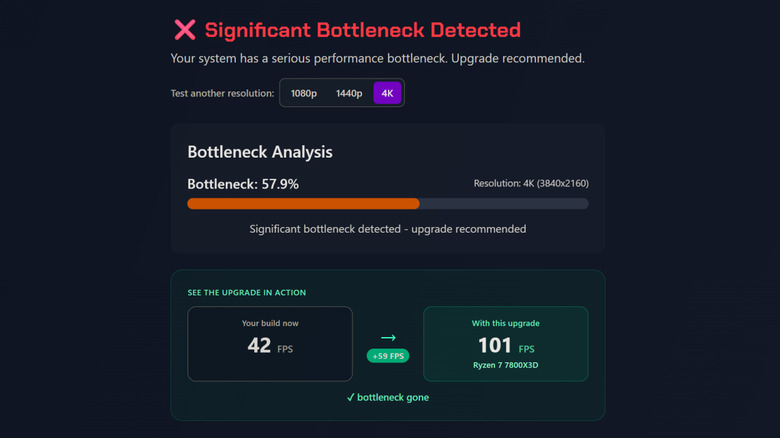
A bottleneck calculator takes your chosen CPU and GPU and compares their performance at your target resolution— common test outputs are 1080p, 1440p and 2160p. If both components are rated to perform adequately at your target benchmark, you'll receive a bottleneck score around ten percent or less. However, if one component is ill-equipped to handle the benchmark, it will receive a high percentage, indicating it's a bottleneck. The lower the percentage, the better the score.
Typically, the CPU is the culprit behind most PC bottlenecks. The CPU's job is to send information to the rest of your system in a timely fashion. If it's too slow, other components will wait for the CPU to finish. This is usually what causes stutters in video games. However, if your GPU is hovering around 95 percent usage while struggling to render the application, you may have a GPU bottleneck; GPUs tend to struggle when rendering graphics well above their intended resolution or frame rate. A bottlenecked GPU can cause screen tearing, low frame rates and inconsistent performance.
That is why bottleneck calculators ask for your target resolution: your GPU's performance depends heavily on how many pixels it renders each second. Paradoxically, this clinical approach to calculating performance is what makes bottleneck calculators so unreliable: they rely on spec sheets and theory, not real data from your PC.
Are bottleneck calculators accurate?
Bottleneck calculators can't give you truly accurate data because of how they work. Since they reference manufacturer spec sheets, they omit variability from other system components and the application(s) you're testing. Not every graphics card is made equal, just as not every video game uses your GPU as effectively. A newer Intel GPU may struggle to run an older DX11 application that most Nvidia or AMD cards would run flawlessly. A powerful workstation CPU like the Ryzen 9 7950X won't perform as well as many X3D Ryzen chips for gaming because they have smaller L3 caches. These nuances are completely lost in these bottleneck calculators.
While they may not be ideal for detailed system troubleshooting, bottleneck calculators help with system-build planning. They're a convenient way to quickly check if your chosen CPU and GPU can handle your target resolution out of the box. They can also be a fun way for hobbyists to check strange hardware combinations you wouldn't normally see.
But for those looking for accurate tests on their PC hardware, performance monitoring software will always yield more reliable results. Bottleneck calculators can't account for your installed drivers, background apps you should disable, or performance issues in the game you're benchmarking. A simple bottleneck percentage doesn't tell the full story.