The Switch 2 has lots of little tricks to discover: some inherited from the original Switch and some new.
Chances are that you aren't taking full advantage of everything your Nintendo Switch 2 can do. It's easy to jump right into games and ignore the various settings that help your system run at its best.
The Switch 2 is a pretty direct upgrade to the original Switch — its design, OS, controllers and other aspects are refinements rather than something entirely new. That means many of the Switch 1's tips and tricks work on the newer console too, so if you're a Switch veteran you might already know where to look. But there are other easy-to-miss improvements to find, and they're unique to the newer system.
Whether it's making controls more comfortable or repurposing hardware you already have, you should know about the Switch 2's neat little features. For instance, you might have overlooked the option to share games with friends, which can save you all money. Try these features out before you jump into a game on your next session.
Locate your controllers
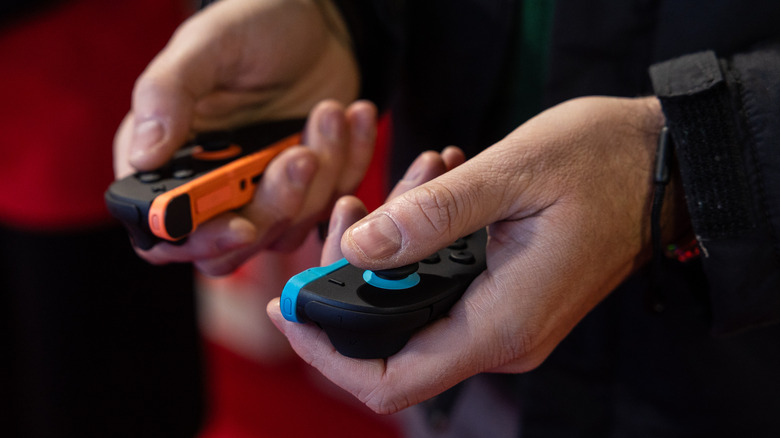
The Joy-Con 2 controllers are larger than the original models but still small enough to sink between the couch cushions or lose sight of underneath a blanket. Next time you can't find your controllers, your console can help. Open the Controllers page from the main menu, then hit Search for Controllers.
All compatible controllers you've paired to the system will appear; to find one, highlight it and hold L or R (or press the touchscreen). While you're holding the button, the controller will vibrate and play a sound, helping you track it down. If you can't find one, try walking around with the console to get back in range of it.
There are a few caveats here. While you can pair original Switch controllers with a Switch 2, this feature can't locate them. Third-party Switch controllers may or may not work. You can't ping a dead controller with this, and it won't find a controller that's paired with another console.
Preserve long-term battery health
Most laptops, phones and similar devices now include a feature to cap their charging at 80 percent (or similar values). This is designed to protect the health of the device's battery over several years, since keeping lithium-ion batteries at 100 percent for extended periods wears them faster than lower percentages.
Your Switch 2 can also do this: open Settings and scroll to System. About halfway down, you'll see a toggle titled Stop Charging Around 80-90%. Turn this on, and your system will limit itself when it's on the dock or otherwise charging. If you're headed on a long trip, feel free to shut this off first to fully juice up. But in general, especially if your Switch 2 sits on the dock most of the time, this is worth having on.
Speaking of charging, the System Battery (%) option next to this is appreciated, too. It will show the exact battery level instead of a general symbol.
Remap your controller buttons
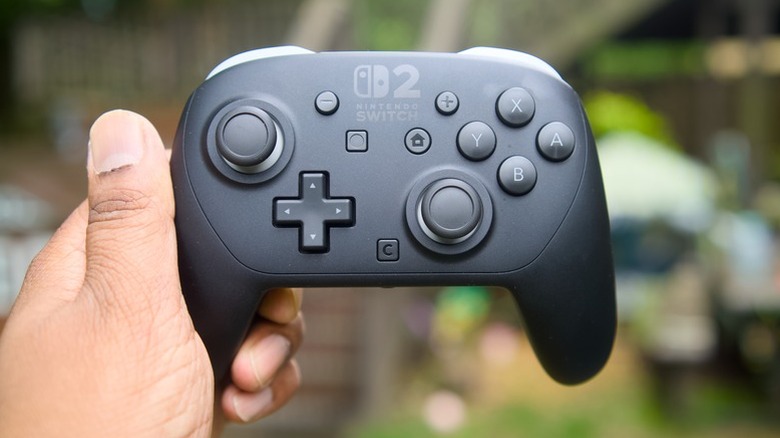
While many modern games have expansive control scheme options, sometimes you can't adjust exactly what you'd like. For those cases, you're able to remap buttons at the system level. Open Settings and go to Accessibility. At the top, choose Button Mapping — if you plan to use this often, enable Button Mapping in Quick Settings and a shortcut to this tool will appear when you hold the Home button.
In this menu, you'll see each connected controller on the left side. Select one and choose Edit Controller's Mappings to show its buttons, where you're free to remap most of the inputs to anything else. For example, you could swap the ZR and ZL buttons with R and L, or move an inconvenient input to a button that's in closer reach.
The C button is of particular interest; if you don't use GameChat, you can disable the button to avoid accidental activation. Alternatively, turn it into a secondary input for another button, like a D-pad direction or pressing one of the sticks. Check the Control Stick Settings if you'd like to swap the left and right sticks or use a Joy-Con 2 vertically when a game intends you to hold it horizontally.
While you can't apply a remap to a certain game, you can save up to five profiles per controller and swap them as needed. After hitting Save, choose Save as a Preset and give it a name. When remapping is applied, you'll see a blue wrench icon at the bottom-left of the menu and anywhere else that controller icon appears. Games are not aware of remapping done this way, so if you've swapped ZR and R, for example, you'll need to press the latter when the game prompts the former.
There's one more related option at the bottom of Settings > Controllers & Accessories: Swap A and B. This simple toggle does what it says and is great if you're used to PlayStation or Xbox controllers that have the Confirm button at the bottom and Cancel on the right.
You have options for letting others enjoy your games, thanks to Nintendo's virtual game cards. Any game loaded onto your system is playable by all other users on the console under their own profile. If you have a Nintendo family group set up, other members can borrow your games on their system for two weeks (during which time you're unable to play them).
Open the Virtual Game Cards page on the Home screen to see your collection. Choose one and hit Lend to Family Group Member, then Select a User to Lend To. To do this, you have to be physically near the other person. You can only loan three games at a time, and a borrower can only have a single game "checked out" at once. Either party can return the game early, and you're free to loan it again if desired after 14 days.
There's also the GameShare feature, where you can stream a copy of compatible games so anyone nearby with a Switch or Switch 2 can join you in multiplayer. You can also do this online using GameChat for friends with a Switch 2. Only a few titles (including Donkey Kong Bananza, Clubhouse Games and Super Mario Odyssey) are supported, but it's worth a look for a low-cost multiplayer.
Speed up your Switch 2 experience
There are a few ways to reduce slowdowns across your Switch 2 so you don't get bogged down in menus all the time. If you're the only user on your system, it's a waste of time to select your profile every time you open a game or the eShop. To avoid this, go to Settings > Users and enable Skip Selection Screen. This option won't appear if your system has multiple users.
You might also be able to minimize loading times in Switch 1 games. These can see smoother performance when playing off the dock if you visit Settings > System > Nintendo Switch Software Handling > Handheld Mode Boost. By enabling this, your Switch 2 runs original Switch titles as if they were in TV mode, which can improve their graphics or performance. As a trade-off, it will likely use more battery, and there are some control quirks (like the touchscreen not working). There's also an option to add this to Quick Settings for easier toggling.
Finally, there's a much better way to share media you create on your Switch 2. To share your screenshots and video clips much faster, open the Gallery icon on the home screen, hit the Settings cog on the left, and pick your profile. Enable Automatic Uploads and your system will upload up to 100 items, held for 30 days. Then on your phone, install the Nintendo Switch app and sign in with your Nintendo account. By tapping the same Album icon in the app, you're able to access your uploads and share them over chat apps, social media or similar.