The PS5 has several quality-of-life features that save time and reduce annoyances.
When you fire up your PlayStation 5, you presumably want to get into a game instead of messing around in menus. Unless you're waiting for an update to install, you probably aren't eager to see what's buried within the Settings tab. But if you're a new PlayStation 5 owner or it's been a while since you tweaked your settings, you may have overlooked important options that make every play session better.
The PS5 has several quality-of-life features that are buried deep but have been expanded over the years. While the default options of the console aren't inherently bad, they can waste your console space, send unnecessary alerts and prevent the console's standout features from working at their best.
These options save time, reduce annoyances and make sure you're getting the most out of your console, so try them out for a superior experience.
Disable automatic trophy captures

By default, your PS5 captures a screenshot and video every time you earn a trophy. While it's cool to save a record of major achievements, not all trophy rarities deserve a video clip. These can quickly eat up a lot of storage space, especially if you play many different games and go for trophies.
To change this, go to Settings > Captures and Broadcasts > Captures > Trophies. I recommend setting Save Trophy Videos to Platinum, Gold so you save big moments without flooding your system with videos for random bronze trophies. Set the Trophy Video Duration to 15 seconds to save space unless you want the longer 30 seconds for full context.
While screenshots don't take up as much space as videos, adjusting the Save Trophy Screenshots option is also worthwhile if you don't care about those.
Customize your controller behavior
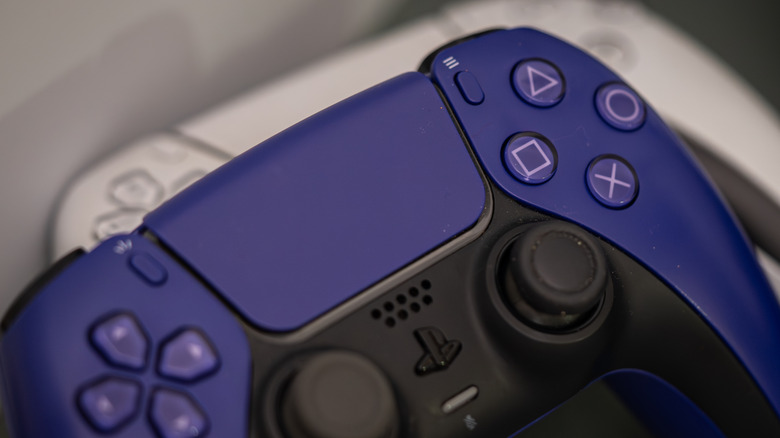
Two of the DualSense controller's standout features are its improved rumble and adaptive triggers. While many games let you turn these off entirely, if you find them overwhelming, try adjusting their intensity instead of outright shutting them off. Head to Settings > Accessories > Controller, where you're able to change Vibration Intensity and Trigger Effect Intensity.
Also in this menu, adjust Brightness of Controller Indicators if you find the colored light bar on the controller too dim or bright. Not every game uses this, but it can be distracting to see a constant red light while you're at low health, for example.
The PS5 controller has a mic built-in, which can work as a backup if your headset is dead. But when this mic is active, your system reduces the vibration and adaptive trigger intensity to minimize the amount of noise it picks up. To avoid this, go to Settings > Sound > Microphone and change Set Microphone Status When Logged In to Mute. This also prevents you from accidentally sharing audio in an online game. And if you ever need to mute all sound coming from your PS5, press and hold the Mute button for a moment.
By default, the Create button's behavior is awkward; you have to hold it for a second to take a screenshot, so it's easy to miss the moment you meant to capture. To make it more natural, visit Settings > Captures and Broadcasts > Shortcuts for Create button and choose Easy Screenshots. With this, pressing the button once takes a screenshot, while holding the button brings up the Create menu for full options.
Adjust when notifications show
Your PS5 sends various notifications that can be annoying when they come at the wrong times. It's nice to know a close friend just came online so you can invite them to a party, but you don't need a sale alert distracting you from an emotional cutscene. To control what notifications you get and when, go to Settings > Notifications. The top options control whether alerts appear at all, as well as whether they include a preview of their information and how long they stick on the screen.
Once you've set those, go through the list and choose to hide them when you're playing a game, watching media or live streaming. For example, you can hide game invites while watching Netflix so you don't get spammed by your friends and turn off useless ones like Feedback. Don't miss the When Friends Go Online option so you know when a multiplayer buddy is ready.
If you miss a notification, hit the PS Button on your controller to open the control center, then choose the Bell icon to view your alert history. You can also activate Do Not Disturb here to pause all notifications until you restart or turn this off.
Personalize the control center and home screen
When it comes to the control center, you aren't stuck with its default layout. After opening it with the PS button, press the Options button to show its customization panel. Select an item to move it to another position, or drop it down to Hidden Controls if you don't need it (though not all items can be hidden). There are also a few extra items not shown by default, like accessibility and network options. Adjust the utility to show what you use most so you spend less time fumbling around.
Over the years, the PS5 has added more home screen personalization as well. It's nothing like the custom themes of the PS3 and PS4, but can at least make your console feel more inviting. To start, select the Welcome Hub icon, represented by the four PlayStation symbols on the home screen.
At the top-right, you'll see four icons that let you select and move widgets, pick a preset arrangement, choose a wallpaper and adjust options. The widgets include quick views of your console's free space, online friends, controller battery level, recent screenshots and more — great for keeping relevant info all in one place so you don't have to dig into menus as often. For a bit of nostalgia, you can also change the PS5's interface and sound effects to use one of the four prior console generations. Head to Settings > System > Appearance > Appearance and Sound to take a look.
Finally, if you play a lot of different games, you should pin your favorites on the home screen so you don't have to dig them out of your library. Highlight a title, then hit the Options button on your controller. Choose Keep in Home from the resulting menu, and the game will stay as one of the icons on your home screen. You can't pin more than five items at a time.
Console lights, sounds and quality of life tweaks

If you're not a fan of the PS5's startup beep alerting others of your late-night gaming sessions, you can quiet or silence it at Settings > System > Beep and Light. The default Volume is High, but you can choose Low or enable the Mute Beep Sound toggle. In the same menu, select Brightness to customize how bright the PS5 console's lights are. Maybe you want the orange rest mode light bright for a makeshift nightlight or to dim the light to avoid distractions while playing.
You can set your preferred settings at the system level and supported games will use these without you having to configure them every time. This is under Settings > Saved Data and Game/App Settings > Game Presets. Available tweaks include difficulty, performance/resolution modes, camera inversion and subtitles. It saves time not having to configure these common options every time you start a new game.
Finally, if you use headphones, it's worth setting up 3D Audio for a more immersive experience. Go to Settings > Sound > 3D Audio (Headphones) > Create Personalized 3D Audio Profile to walk through a process to dial this in for your ears. It depends on your specific hearing, so test it out and see if you can hear in-game goings-on better than with stereo.