Keep your Xbox Series X feeling like new by keeping your cache clear, and if that doesn't help, a reset is in order.
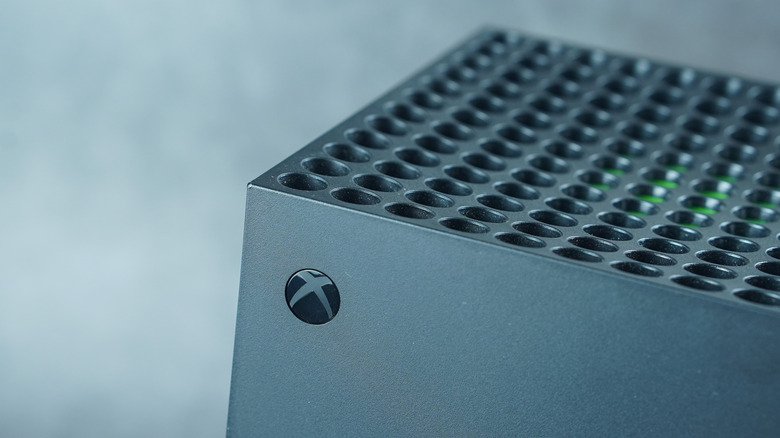
If you secured your Xbox Series X years before the RAM crisis made consumer tech prices skyrocket (in case you were wondering why RAM prices are so high right now), chances are it's not as lag-free as it once was. Over time, temporary files can build up in the system, leading to slowdowns and glitches. When the classic restart option doesn't suffice, consider clearing the console's cache.
Just like clearing the cache on a phone or web browser, doing so on your Xbox once in a while can help its performance while navigating between menus. Clear the cache by turning off and unplugging your Xbox Series X for two minutes, then pressing the power button multiple times before reconnecting its power cord to power-cycle the console. Power it back on, and you should be good to go.
Clearing your cache is a trick worth trying when you run into excessive loading errors or connectivity issues in your games. For instance, Epic Games notes directly on its support site that clearing the cache on an Xbox Series X can help with load failure errors in its game Rocket League.
What to expect after clearing your Xbox Series X's cache

Clearing your cache can help resolve issues if a simple restart doesn't, since this action removes files stored on the console that may have been corrupted. Other ways to help reach the expected lifespan of your Xbox Series X are to routinely clean its vents for efficient heat management and keep the console in an open area so the fan can do its job.
The console's cache is supposed to store data over time to make common routines faster by reducing the need to repeatedly load the same elements. So while it's a design choice that's supposed to help, files can still build up over months and years, clogging things up. Rest assured that clearing your cache won't affect your games or save data.
One sign that you cleared your cache correctly is when you spot the Xbox logo on the screen and the full boot process occurs. However, a Reddit user wrote that clearing the cache could temporarily increase loading times in Microsoft Flight Simulator. Then again, a user also reported quicker boot times after clearing the cache, so your experience may vary.
Consider resetting your console if issues persist
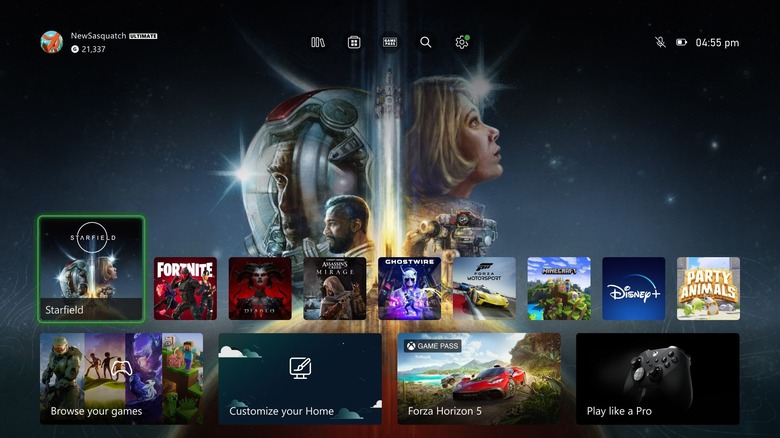
While it's a good practice to clear your console's cache once in a while, there's no specific schedule you need to maintain. Simply doing so whenever your Xbox Series X feels sluggish should do the trick.
If your current experience is abysmal, you may even want to perform a reset. Before resetting, connect your console to the internet and let your save data sync to the Xbox network. To reset the console, go to Settings > System > Console info > Reset console. You can also select the option Reset and keep my games & apps to save yourself the hassle of redownloading everything, though you'll still need to sign back into your accounts afterward.
If your console still doesn't feel as snappy as you'd like or if your games don't run as expected after wiping its cache, consider a factory reset by choosing the option Reset and remove everything in the settings. While starting fresh with a factory reset can feel like a chore since it wipes everything on the console with all unsynced data lost (considering the wait time to redownload everything, along with the other drawbacks you should know before buying an Xbox Series X), it could get your games to run smoothly so you can once again enjoy your Xbox couch sessions.