This accessibility feature can be really useful.
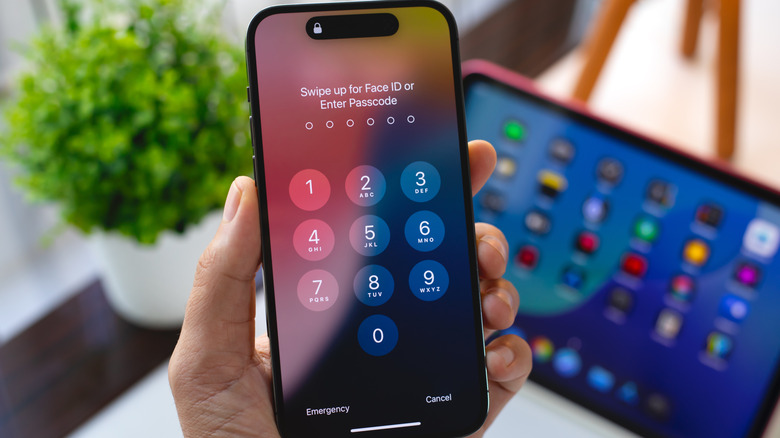
With iOS's Switch Control, you can control your iPhone or iPad using alternate input methods ranging from external adaptive controllers to head movements and hand gestures. It's a useful accessibility feature for anyone with limited mobility that's even more powerful than it might seem at first if you dig into its settings. One option, Use Other Devices for Switch Control, lets you use the alternate controls you set up on one iOS device to control other devices on the same Wi-Fi network, and it only takes a little bit of setup.
First, you need to enable Switch Control across your devices. Make sure any devices you want to control are connected to the same Wi-Fi network and you're signed into the same iCloud account on all of them. If you want to control a Mac desktop computer remotely, you also need to open the Apple menu, click Accessibility and open the Switch Control menu. Select Allow platform switching to control your computer. Then on your mobile devices, open the Settings app, click Accessibility and turn the Switch Control toggle on. Now you can assign external controllers or gestures to specific actions by selecting Add New Switch under the Switches menu and following the onscreen prompts.
Once you have your switches set up, head back to the main Switch Control menu and select Device, then Use Other Device. This will show you a list of all the compatible devices linked to your network. Select one and you can use the switches you've already established to control them remotely. When you want to stop controlling the remote device, just select Stop Using Device under the same menu.
Switch Control is more versatile than it looks
While Switch Control's Use Other Devices feature can only be used to control iOS devices, you can assign non-Apple devices as your external controllers. Adaptive controllers made by other companies like Microsoft can be mapped as switches, but you can even use devices that aren't intended as accessibility tools. Standard game controllers work as well, along with other devices that can connect to your iPhone or iPad via Bluetooth or USB, like Bluetooth keyboards.
Switch Control is intended to make navigating iOS devices and selecting items on screen easier for people with limited mobility, but some users have found novel ways to use it for more than basic functionality. Switch Control lets you set up Recipes, which can be used to record and replay sequences of inputs. With a little work, iOS users have set up Switch Control to automate repetitive actions in mobile games or other apps and to turn pages in the Kindle app. These unintended applications may not always be the best use of Switch Control, but it's worth experimenting with how you can use the feature, especially if you've got multiple iOS devices and want to try controlling them all from one place.